CyberPanel is the software behind the Control Panel on every Daedalus Design hosting plan. It is the place your website, email, databases, certificates and backups actually live. Most days you will never need to open it — DaeOne and our support team handle the routine work for you — but when you want to look under the bonnet, this is what you will find.
This guide is the technical companion to our plain-English Control Panel overview. If you just want to know what the dashboard does, start there. If you want to know CyberPanel specifically — how to log in, where each feature lives, and how it is built — read on.
What's in this guide
What CyberPanel is
CyberPanel is an open-source web hosting control panel. It is used by millions of sites worldwide and, unlike older panels, it is built on the LiteSpeed web server — which is what makes sites hosted with us fast out of the box.
In practical terms, CyberPanel gives you a single browser dashboard for everything a hosting account needs: creating and managing websites, email inboxes, databases, SSL certificates, DNS records, backups and firewall rules. We run it on our own UK servers and tune it for you, so you get the power without the maintenance.
The short version
CyberPanel is the engine room of your hosting. DaeOne is the cockpit you use day to day. Both talk to the same website — DaeOne for content, enquiries and health; CyberPanel for the hosting plumbing underneath.
How to log in
Your welcome email includes a direct link to your Control Panel along with your username and a temporary password. If you ever need the address manually, CyberPanel is reached on port 8090:
https://your-domain.co.uk:8090

- Open the link from your welcome email (or the address above) in any browser.
- Enter the username and password we sent you.
- Change the temporary password the first time you sign in, and turn on two-factor authentication if you plan to use the panel regularly.
Can't find your details, or the password isn't working? Contact support and we'll reset it for you — we never ask for your password by email.
The CyberPanel dashboard
When you sign in you land on the main dashboard, with server status at the top and a menu down the left. The sections you'll use most are:
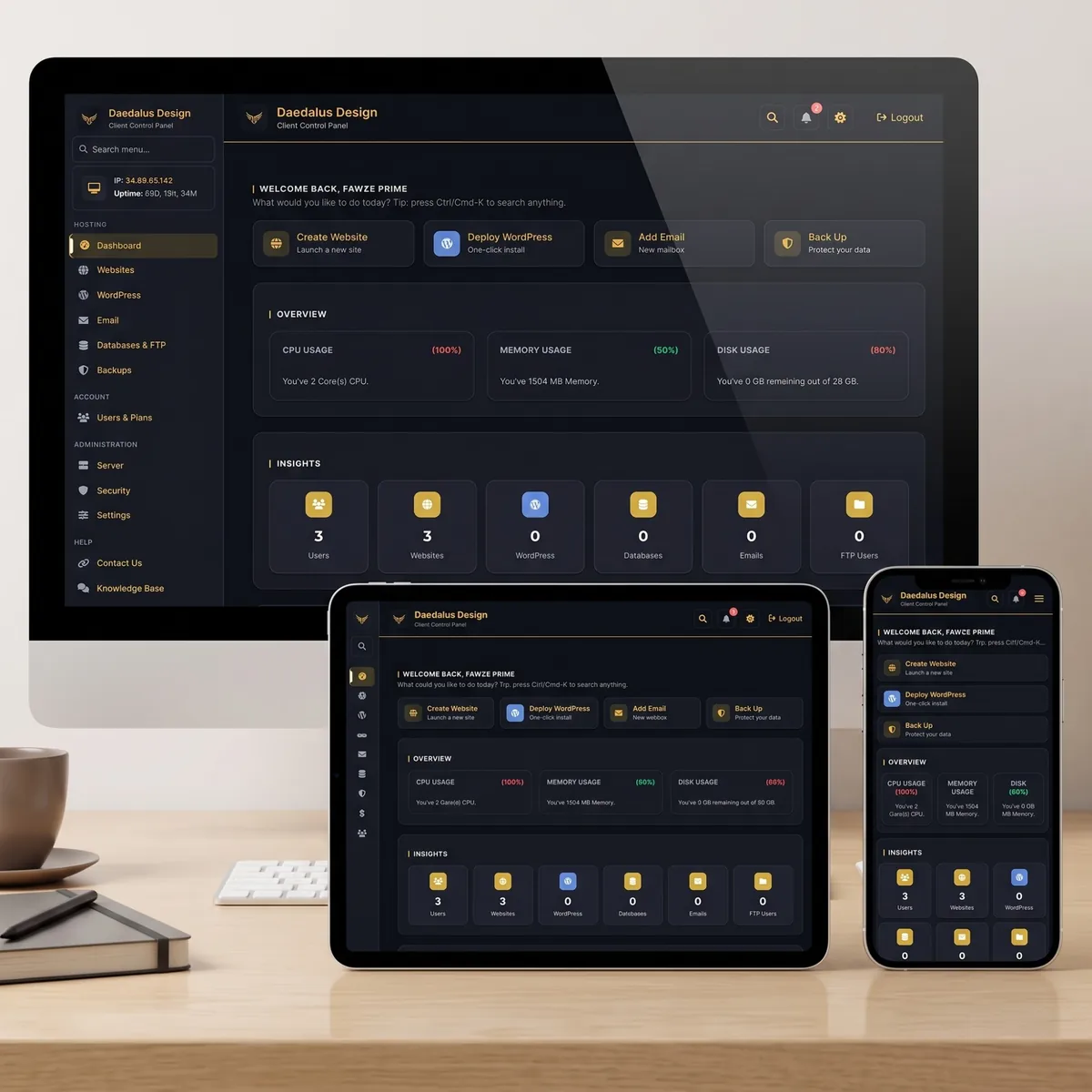
Websites
List, launch and manage each site on your account, including its file manager and staging tools.
Create mailboxes, set forwarding and open webmail, all tied to your own domain.
Databases
Create MySQL/MariaDB databases and users, and open phpMyAdmin.
SSL
Issue and renew free Let's Encrypt certificates and force HTTPS.
Backups
Take on-demand backups, schedule them, and restore to a point in time.
Security
ModSecurity rules, firewall settings and login protection.
Managing websites and files
Under Websites → List Websites you'll see every site on your account. Click one to reach its tools:
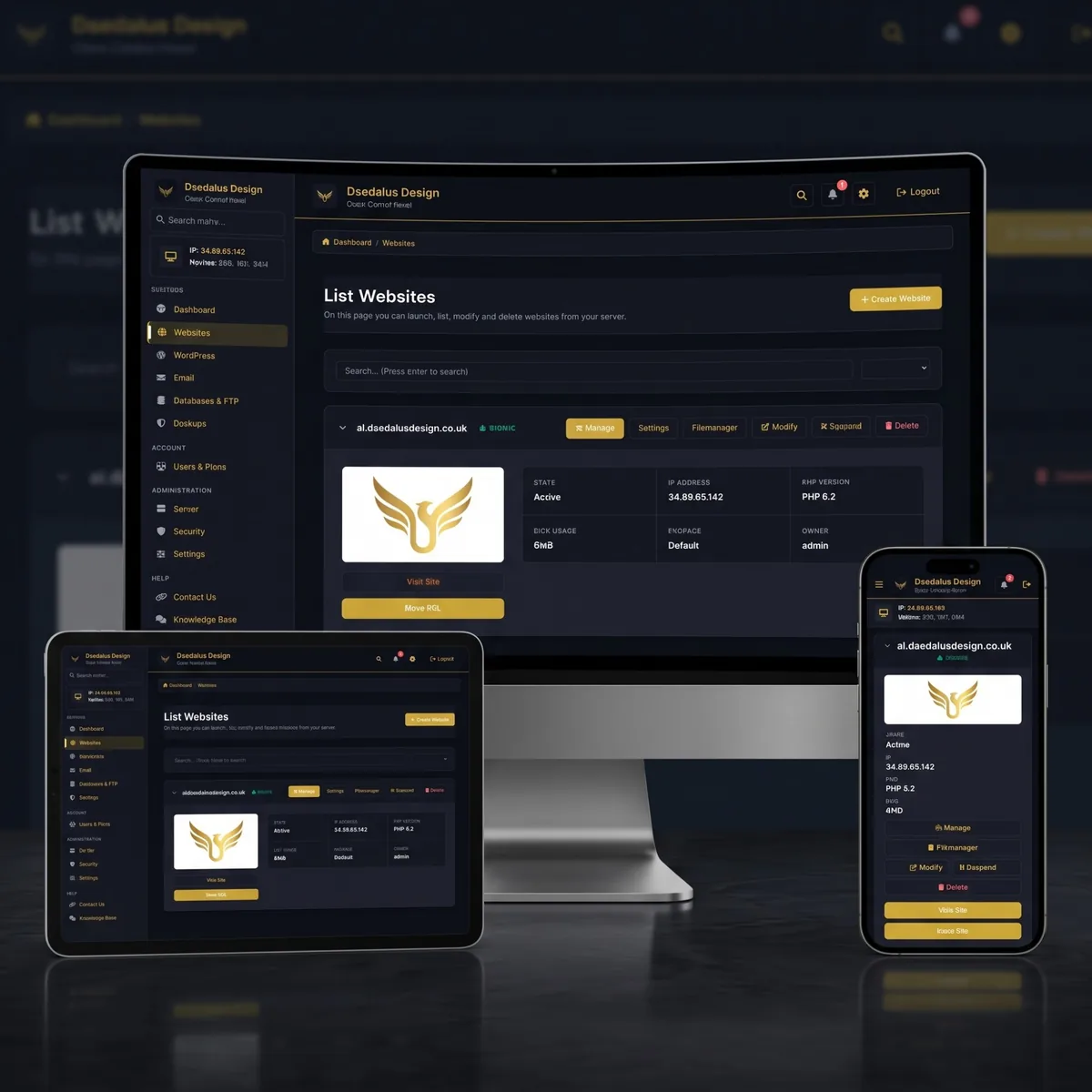
- File Manager — browse, upload, edit and download the files that make up your site, without needing FTP software.
- Launch — the summary screen for that site, with quick links to its email, databases and SSL.
- FTP — create FTP accounts if you'd rather use a desktop client such as FileZilla.
For AI-managed customers, you rarely need this — we publish changes for you through DaeOne. The file manager is there for the moments you want direct access.
Email accounts and webmail
CyberPanel handles email on your own domain. Under Email → Create Email you can add a mailbox such as hello@your-domain.co.uk, set its password and mailbox size, then read it in webmail or connect it to Outlook, Apple Mail or your phone.
- Create Email — add a new mailbox.
- Email Forwarding — send a copy of one address to another.
- Access Webmail — read and send email in the browser.
If your mail isn't arriving, check the DNS and deliverability records first — our team keeps SPF, DKIM and DMARC configured for you, so raise a ticket rather than editing these yourself.
Databases and phpMyAdmin
Dynamic sites — WordPress, for instance — store their content in a database. Under Databases you can create a database and a user, then manage the data directly in phpMyAdmin.
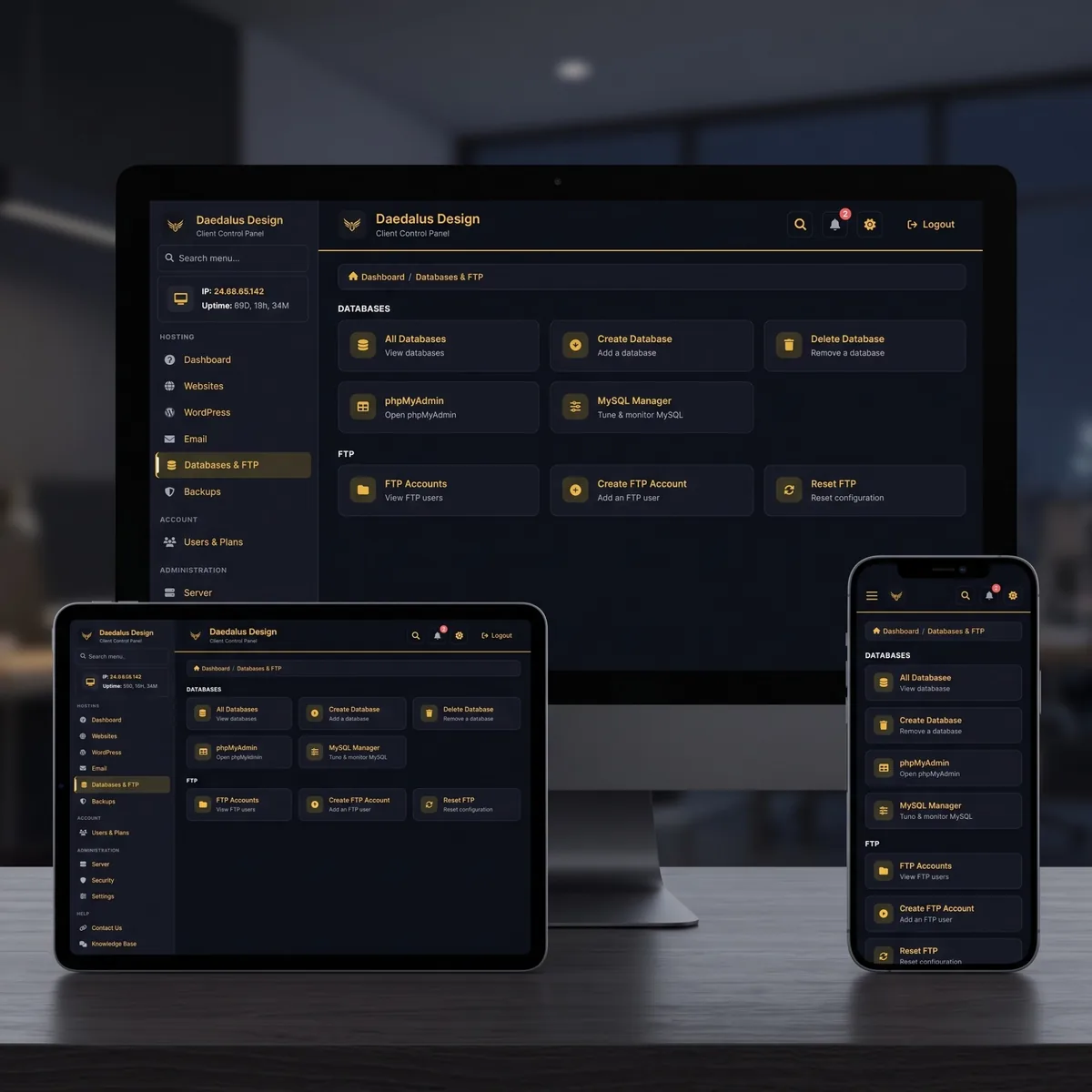
- Create Database — sets up a new MySQL/MariaDB database and user in one step.
- phpMyAdmin — a visual tool for browsing tables and running queries.
Static sites and most AI-managed sites don't use a database at all, which is part of why they're so fast and hard to break.
SSL certificates
Every site we host gets a free SSL certificate from Let's Encrypt, so visitors see the padlock and your site loads over HTTPS. CyberPanel issues and renews these automatically. Under SSL you can:
- Issue or reissue a certificate for a website or mail server.
- Force HTTPS so anyone visiting the insecure version is redirected to the secure one.
Certificates renew on their own before they expire — there's nothing you need to remember.
Backups and restores
CyberPanel can back up a website's files, databases and email together. Under Backup you can create a backup now, schedule regular ones, or send them to remote storage. Restoring rolls a site back to how it was at the time of the backup.
You're covered either way
On top of anything you create yourself, we take our own server-level backups. If something goes wrong, tell us and we can restore for you — you don't have to manage this alone.
Security and firewall
CyberPanel ships with several layers of protection, and we keep them switched on:
- ModSecurity — a web application firewall that blocks common attacks before they reach your site.
- Firewall — controls which connections are allowed to the server.
- Login protection — guards the panel itself against brute-force attempts.
We manage these rules for you. If a legitimate action is ever blocked, support can adjust the rules quickly.
LiteSpeed cache and performance
Because CyberPanel runs on LiteSpeed, your site can use LiteSpeed Cache — server-level caching that serves pages far faster than a standard setup. For WordPress this pairs with the LiteSpeed Cache plugin; for static and AI-managed sites the speed is built in. The result is quicker load times, which visitors and search engines both reward.
CyberPanel vs DaeOne — which do I use?
They're not rivals — they sit at different layers. As a rule of thumb:
Use DaeOne for…
Everyday work: editing content, publishing pages, checking site health and uptime, SEO fixes, reading enquiries and leads, and asking for changes in plain English.
Use CyberPanel for…
Hosting plumbing: creating email accounts, databases and FTP users, issuing certificates, taking a manual backup, or accessing files directly.
If you're not sure which one a task belongs in, just ask DaeOne or our team — we'll point you to the right place or do it for you.
Frequently asked questions
Do I have to use CyberPanel?
No. Most customers never open it. It's there when you want direct control, but DaeOne and our support team can handle everything for you.
Where do I find my login details?
They're in your welcome email, alongside a direct link to your Control Panel. If you can't find them, contact support and we'll help you back in.
Is CyberPanel the same as cPanel?
They do a similar job — both are hosting control panels — but they're different products. CyberPanel is open-source and built on the faster LiteSpeed web server, which is why we chose it.
Can I break my site from in here?
It's possible to change things you didn't mean to, which is why we manage most of it for you and keep our own backups. If in doubt, ask before you edit — and if something does go wrong, we can restore it.
Why won't the panel load on port 8090?
Some office or public networks block non-standard ports. Try another network or your mobile connection, and if it still won't load, contact support.
Need a hand with your hosting?
Whether it's CyberPanel, email or something that just isn't behaving, we're here to help. No question is too simple.
Get in touchThe Daedalus Dispatch
Get practical guides like this one delivered to your inbox. AI hosting tips, web design insights, and digital strategy for UK businesses — no spam, no fluff, unsubscribe any time.