What DaeOne is
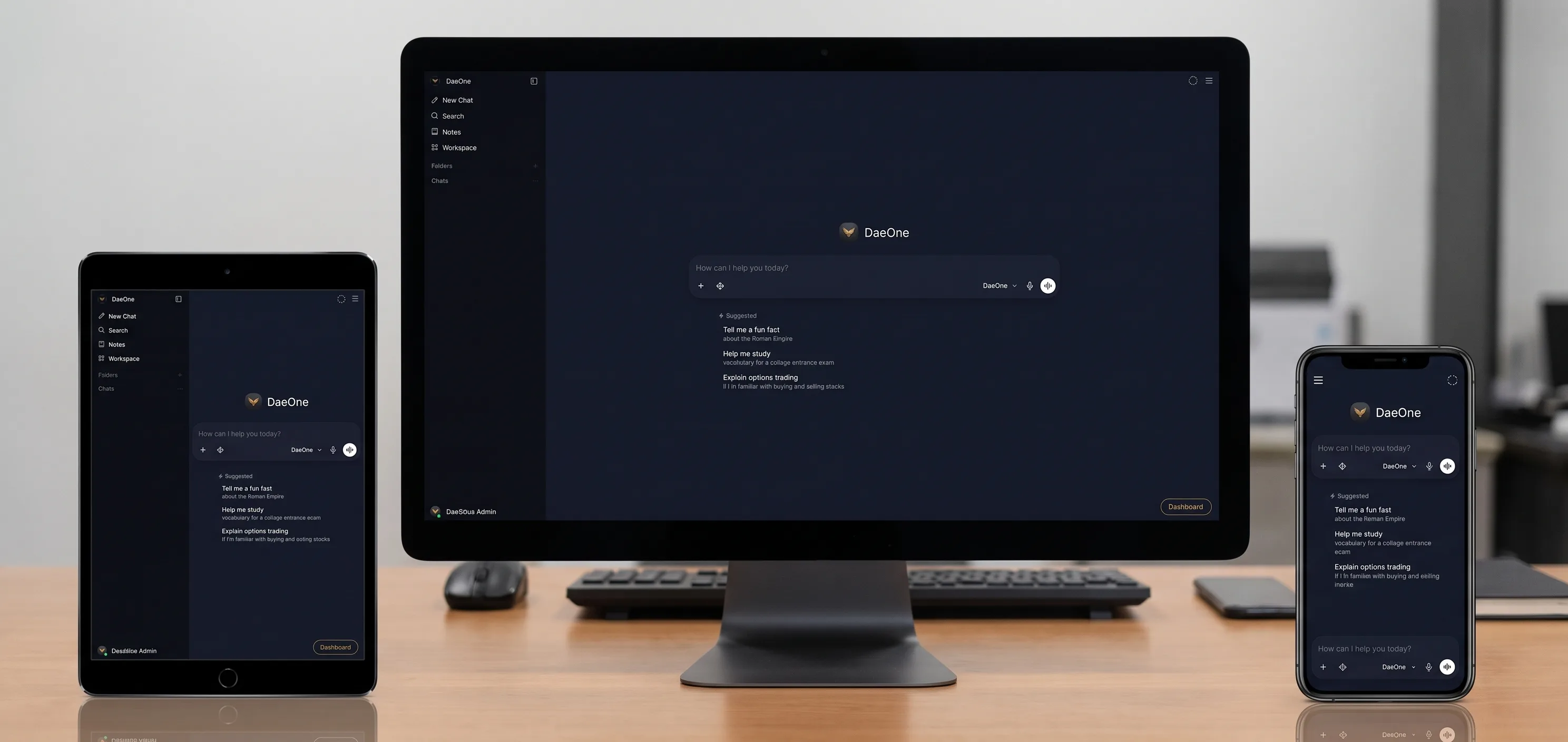
DaeOne is the place you go to see how your website is actually doing. It has two front doors: a chat, where you type what you want in plain English, and a set of panels, where the same information is laid out as tables and figures you can scan.
It is the central AI interface and dashboard for every AI-powered website and AI hosting package we run — static sites, WordPress and Magento alike. However your site is built, this is where you see it and talk to it.
They are not two products. They read the same data, obey the same permissions, and make changes through the same machinery. Use whichever suits the moment — ask a question when you have one, open a panel when you want the whole picture.
The short version: the Dashboard tells you what needs attention, Health and SEO tell you why, Leads and Email tell you whether enquiries are arriving and replies are going out, and Site builder lets you add a page without waiting for us.
The panels at a glance
Each panel answers one question. Pick one to jump straight to it.
Signing in
DaeOne lives at ai.daedalusdesign.co.uk. Sign in with the email address and password from your welcome email, and you land in the chat.
- Go to https://ai.daedalusdesign.co.uk
- Sign in with your email address and password
- Pick a panel from the left-hand sidebar — Dashboard, Health, SEO, Leads, Email, Tasks or Site builder
The panels open in the same window and there is a Back to chat button in the top right of every one, so you are never more than a click from either view. It works the same on a phone or tablet as it does on a desktop — the figures stack rather than shrink, so nothing becomes unreadable.
If you have forgotten your password, get in touch and we will reset it. We never see your password ourselves; we can only issue a new one.
Dashboard — what needs attention
The Dashboard opens on issues, not traffic. That is deliberate. A visitor count nobody acts on is decoration; a broken checkout link costs money. Traffic is there, but it is not what greets you.
Across the top you get the figures worth knowing at a glance:
Page views
Total views across every site you have access to, over the last 30 days.
Visitors
Unique people, with bots excluded — so the number means something.
Leads
Enquiries captured through your forms in the same window.
Messages
Contact form submissions received.
Needs attention
How many issues are serious enough to be worth your time today.
Below that sit two lists. Issues are things that are wrong now — each one is tagged with how serious it is and which site it belongs to, and describes itself in full. You will see the actual failing address and the page that links to it, not a code. Suggestions are lower priority: improvements rather than faults.
Some entries carry a button that does the obvious next thing, such as sending a test message when mail delivery looks suspect. Re-check everything, at the top of the issues list, runs the checks again from scratch rather than showing you the last cached answer.

Health — is everything up?
Health answers the question you ask when something feels wrong: is the site actually up, and is anything about to expire?
The summary covers sites up (how many are responding normally), response time (average time to first byte across your sites), certificate (days until the soonest one expires, so you get warning rather than an outage) and health issues found anywhere.
Underneath, every site gets a row of its own showing its status, response time, certificate expiry, whether robots.txt is present, how many pages its sitemap declares, and when it was last checked. Each row has its own Re-check button for when you have just changed something and do not want to wait for the next scheduled run.
There is also a retired hostnames section. Old addresses that used to serve a site are kept under watch so that if one starts misbehaving — a redirect that stops redirecting, say — you find out from here rather than from a customer.

SEO — what to fix
The SEO panel crawls a sample of your pages and lists what to fix, worst first. The summary shows pages in sitemaps (what you are declaring to search engines), pages checked in the last crawl, broken links confirmed as genuinely broken, and the total SEO issues found.
The What to fix list is ordered by severity, and each entry names a real page. Typical entries include:
- Broken links — an address that returns an error, along with the page that links to it, so you know where to go
- Sitemap URLs that do not load — your sitemap is telling search engines a page exists when it does not
- Thin pages — pages under roughly 300 words, which rarely rank for anything competitive
- No social preview image — the page appears as a bare link when shared on social media or messaging apps
- Overlong titles — Google truncates around 60 characters, so the end of the title never gets read
Nothing here is changed for you automatically. The panel tells you what is wrong; fixing it is either your call or a request you make to the agent.
Leads — who has been in touch
Every enquiry captured through your forms lands here, so you are not digging through an inbox to work out whether the week was busy.
The table lists when each lead arrived, the name and email given, the source that captured it, and which site it came from. Above it you get the count for the last 30 days, how many distinct channels are producing leads, the number of contact form messages, and when the most recent capture happened.
A by source breakdown shows which channels are actually working. If one route is producing everything and another nothing, that is worth knowing before you spend money on either.

Email — is your mail arriving?
This panel is about delivery health, not your inbox. It cannot read your mail and does not try to. What it answers is narrower and more useful when something is wrong: are messages leaving the server and reaching people?
You get whether mail is delivering now, the time of the last successful send, the time of the most recent failure, how many messages are in the queue waiting, and a 30-day delivery rate.
Read the 30-day rate carefully. It counts every attempt in the window, including failures from before a problem was fixed. After an outage is resolved the rate stays low for days while that history ages out — which looks alarming and is not. The figures that tell you the truth are the last successful send and the last failure: if the most recent success is after the most recent failure and the queue is empty, mail is working, whatever the percentage says. The banner at the top of the panel spells this out when it applies.
Send a test message confirms the path end to end. It goes to your own address and nobody else's, so you can use it freely without worrying about who receives it. Below, a chart of delivery attempts over the last month shows whether failures are a spike or a trend.

Tasks — work running on a schedule
Tasks shows work the agent runs on a schedule rather than because you asked just now — a weekly SEO check, a monthly summary, anything you have set up.
The summary counts tasks that are active (enabled and scheduled), paused (defined but not scheduled), total runs recorded, and how many succeeded or failed. Each run is a finished record: it either completed cleanly or ended in error. There is no half-state to interpret.
Tasks are created in the chat side of DaeOne, under Workspace → Automations. Once a task has run at least once, its history appears in this panel. An empty panel means nothing is scheduled yet, not that something is broken.
Site builder — adding a page
Site builder lets you add a page by describing it, rather than briefing us and waiting.
- Choose the site the page belongs to
- Give it a page path — the address it will live at, such as
/services/new-page.html - Describe what the page should say, in as much detail as you like: who it is for, what it must cover, what you want the reader to do next
- Press Write the draft and give it a moment — a long page takes a minute
- Read the preview, then publish it deliberately
Drafts never go live on their own. A draft sits in the drafts list until you publish it, and previews are rendered in a locked-down sandbox so nothing in a machine-written page can run scripts or reach the rest of your site. Publishing is always a separate, deliberate action — there is no setting that makes it automatic.
The more specific your description, the less editing you will do. "A page about our Magento hosting, aimed at shop owners moving off shared hosting. Cover speed, backups and the migration we do for free. Include a call to action to the contact form" produces something far closer to finished than "write about hosting".

Access — who can see what
If you have more than one site, or people who should see one of them and not the others, Access is where you decide that. It is visible to account owners only.
The important distinction: Access controls what a login can see, not whether it exists. Creating and removing logins — and anything to do with passwords — happens in Admin Settings on the chat side. Keeping the two apart means a mistake made here can never create an account or change a password.
Who has access lists each login, its label and the sites it may see. Grant access adds one: enter the login's email address, give it a label you will recognise later, and tick the sites it may see.
Permissions are default-deny. A login that is not listed here sees nothing at all — not an empty dashboard, but no data whatsoever. Access is granted deliberately or not at all, and it is enforced on the server every time, so it cannot be worked around in a browser.
Frequently asked questions
Do I have to use the panels, or can I just ask?
Either. Chat and panels are two views of the same system, so a question typed into the chat and a button pressed in a panel do the same thing with the same permissions. Panels are quicker when you want to compare figures or scan a list; the chat is quicker when you have one specific question.
How current are the figures?
Traffic and leads are collected continuously. The site checks behind Health and SEO run on a schedule, and the footer of every panel tells you when they last ran. If you have just changed something and want an immediate answer, use Re-check on a single site or Re-check everything from the Dashboard.
My email delivery rate looks terrible but mail seems fine. Which is right?
Mail is probably fine. The 30-day rate includes failures from before a problem was fixed, and it stays low until that history ages out of the window. Check the last successful send against the most recent failure: if the success is more recent and the queue is empty, mail is being delivered.
Can the agent change my site without me knowing?
No. Pages written in Site builder stay as drafts until you publish them, and there is no automatic-publish setting. Actions that change anything are limited to the sites your login has been granted, and that check happens on the server rather than in your browser.
Can DaeOne read my email?
No. The Email panel reports on whether messages are being delivered — successes, failures and the queue. It has no access to the contents of your mailbox.
Why can't I see the Access panel?
Access is limited to account owners, and it is deliberately left out of the sidebar for logins that cannot use it. If you need to change who sees what and cannot reach it, ask whoever owns the account, or get in touch with us.
I have several sites. Do I need to sign in separately for each?
No. One login covers every site you have been granted, and the panels aggregate across all of them — with per-site rows wherever the detail matters, such as Health and Leads.
Not sure where to start?
Open the Dashboard and work down the issues list. If anything there is unclear, ask us — or ask DaeOne.
Talk to us →